
SEBI and NPCI now require the adoption of standardised, validated, and exclusive UPI IDs for investor payment collections.
To complete this requirement, entities must register a @valid VPA (e.g., windmillcapital.ra@validyes).
Follow the steps below to create your handle.
Step-by-Step Registration Process
Log in to the BSE RA/IA Portal
Enter your Username, Password, and Captcha.
Submit the OTP sent to your registered mobile/email to verify your identity.


Begin the UPI Handle Request
After logging in, click on “Request New UPI IDs” or “UPI Request Handle”.
The following details will already be pre-filled based on SEBI/BSE records:
Entity Name
Registration Number
PAN
Category Code
Legal Account Holder Name
Legal Account Holder PAN


Enter Bank Details
In the UPI Handle Request section:
Add your Bank Account number.
Enter the corresponding IFSC code.
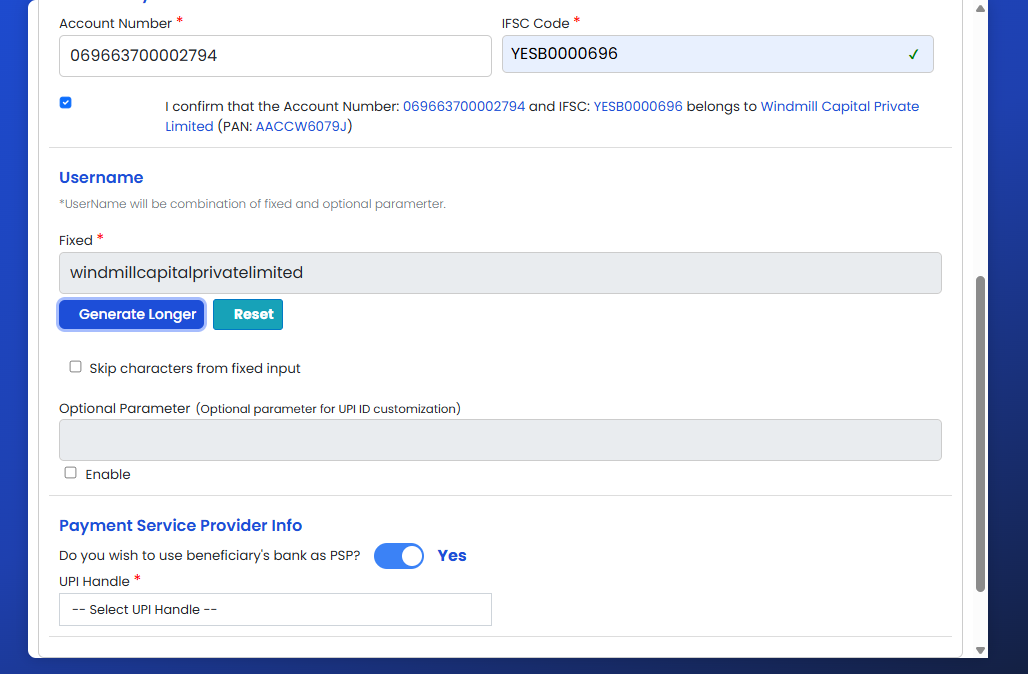
Option 1 - Configure Your UPI Handle - Onboarding on YesBiz (Yes Bank's UPI Stack)
Choose your username (your registered business name will appear by default).
For “Do you wish to use beneficiary’s bank as PSP?”
Select “Yes” if you have a YesBank account, else
Select “No” & select Yes Bank from the dropdown
From the handle options, select “@validyes”

Option 2 - Configure Your UPI Handle - Onboarding on Hyper PG
Choose your username (your registered business name will appear by default).
Click on "Enable" for the Optional Parameter field
Enter hypg & then continue to the next step
Choose Kotak Bank from the list of options
From the handle options, select “@validkpay”
Submit for Approval
Review the information entered.
Click Submit to send your @validyes / @validkpay VPA request for approval.
NOTE: Once you share your @valid VPA with us, please ensure it remains active and unchanged. Any modification, revocation, or deactivation will lead to subscription payment failures for your users.